
SPの表スクロールCSS
こんにちは。今日は「SPの表スクロールCSS」について書きます!
テーブルレイアウトで、SPはPCのレイアウトのままでスクロール対応といったデザインが多いと思います。
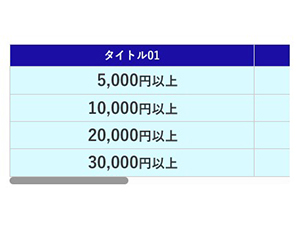
実は今までスクロールにするのは難しいと思っていたのですがたまに使うoverflowプロパティを使えば簡単にできるとわかりました!(←今更感)
きっちり幅とか合わせるにはJSを使わないといけないみたいですが、基礎的な構造はCSSでできるんですね。
ではさっそく見ていきましょう〜!
コード
HTML編
        <div class="tableBlock">
          <table>
            <tr>
              <th>タイトル01</th>
              <th>タイトル02</th>
              <th>タイトル03</th>
            </tr>
            <tr>
              <td>
                <div class="txtInner"><strong>5,000</strong>円以上</div>
              </td>
              <td>
                <div class="txtInner"><strong>40,000</strong>円以上</div>
              </td>
              <td>
                <div class="txtInner"><strong>100</strong>ポイント</div>
              </td>
            </tr>
            <tr>
              <td>
                <div class="txtInner"><strong>10,000</strong>円以上</div>
              </td>
              <td>
                <div class="txtInner"><strong>80,000</strong>円以上</div>
              </td>
              <td>
                <div class="txtInner"><strong>500</strong>ポイント</div>
              </td>
            </tr>
            <tr>
              <td>
                <div class="txtInner"><strong>20,000</strong>円以上</div>
              </td>
              <td>
                <div class="txtInner"><strong>120,000</strong>円以上</div>
              </td>
              <td>
                <div class="txtInner"><strong>1,000</strong>ポイント</div>
              </td>
            </tr>
            <tr>
              <td>
                <div class="txtInner"><strong>30,000</strong>円以上</div>
              </td>
              <td>
                <div class="txtInner"><strong>200,000</strong>円以上</div>
              </td>
              <td>
                <div class="txtInner"><strong>2,000</strong>ポイント</div>
              </td>
            </tr>
          </table>
        </div>
CSS編
.tableBlock
{
  table
  {
    tr
    {
      border-left: 1px solid #ccc;
      border-bottom: 1px solid #ccc;
    }
    th,td
    {
      text-align: center;
      border-top: 1px solid #ccc;
      border-right: 1px solid #ccc;
      font-weight: bold;
      &:first-child
      {
        width: 37%;
      }
      &:nth-child(2)
      {
        width: 37%;
      }
      &:last-child
      {
        width: 26%;
      }
    }
    th
    {
      line-height: 1.3;
      color: #fff;
      background-color: #1A20A7;
    }
    td
    {
      position: relative;
      line-height: 1.2;
      background-color: #D9FAFE;
      &:first-child
      {
        .txtInner
        {
          min-width: 7em;
        }
      }
     &:nth-child(2)
      {
        .txtInner
        {
          min-width: 8em;
        }
      }
    }
    .txtInner
    {
      text-align: right;
      display: inline-block;
    }
  }
}

@media only screen and (max-width: 768px)
{
  .tableBlock
  {
    overflow: auto; //ポイント
    table
    {
      width: 840px; //幅を固定する
      th,
      td
      {
        padding: 5px 15px;
      }
      th
      {
        font-size: 1.5rem;
      }
      td
      {
        font-size: 1.8rem;
        strong
        {
          font-size: 2.2rem;
        }
      }
      .txtInner
      {
      }
    }
  }
}
今回<td>の文字を右揃えにしているので記述が増えていますが、ポイントは【tableBlock】に指定している【overflow: auto;】です!
tableの幅を固定した上で親要素にoverflowを指定するだけで簡単にスクロールができます^^
値の「auto」と「scroll」の違いを調べたのですが、scrollだと文字がはみ出ない場合でもスクロールバーが表示されて、その点autoだとはみ出た場合のみスクロールバーが表示されるみたいです(^○^)
なので値はautoにしておくと良いです◎
では今日はここまで〜〜

コメント